

Automate It with a Flow
Wire your connectors and transformation into a single flow, run its tasks in parallel where possible, give it a schedule, and get notified when it fails.
You have four configurations that each do one thing when you click Run. A flow turns them into one pipeline that runs in the right order, at the right time, without you. Step 5 of the Getting Started arc.
What you need
Section titled “What you need”Everything from the previous steps, in one project:
- the four CSV Import configurations from Load Your Data — or the Google Sheets and database connectors, if you took those side trips,
- the
Denormalize opportunitiestransformation from Transform Your Data, - the Google Sheets destination from Send Your Data Somewhere.
Phases and tasks
Section titled “Phases and tasks”A flow is a list of phases. Each phase holds one or more tasks — a component configuration to run, a notification to send, a variable to set.
- Tasks inside one phase run in parallel.
- Phases run one after another, and the flow only moves on when a phase is finished.
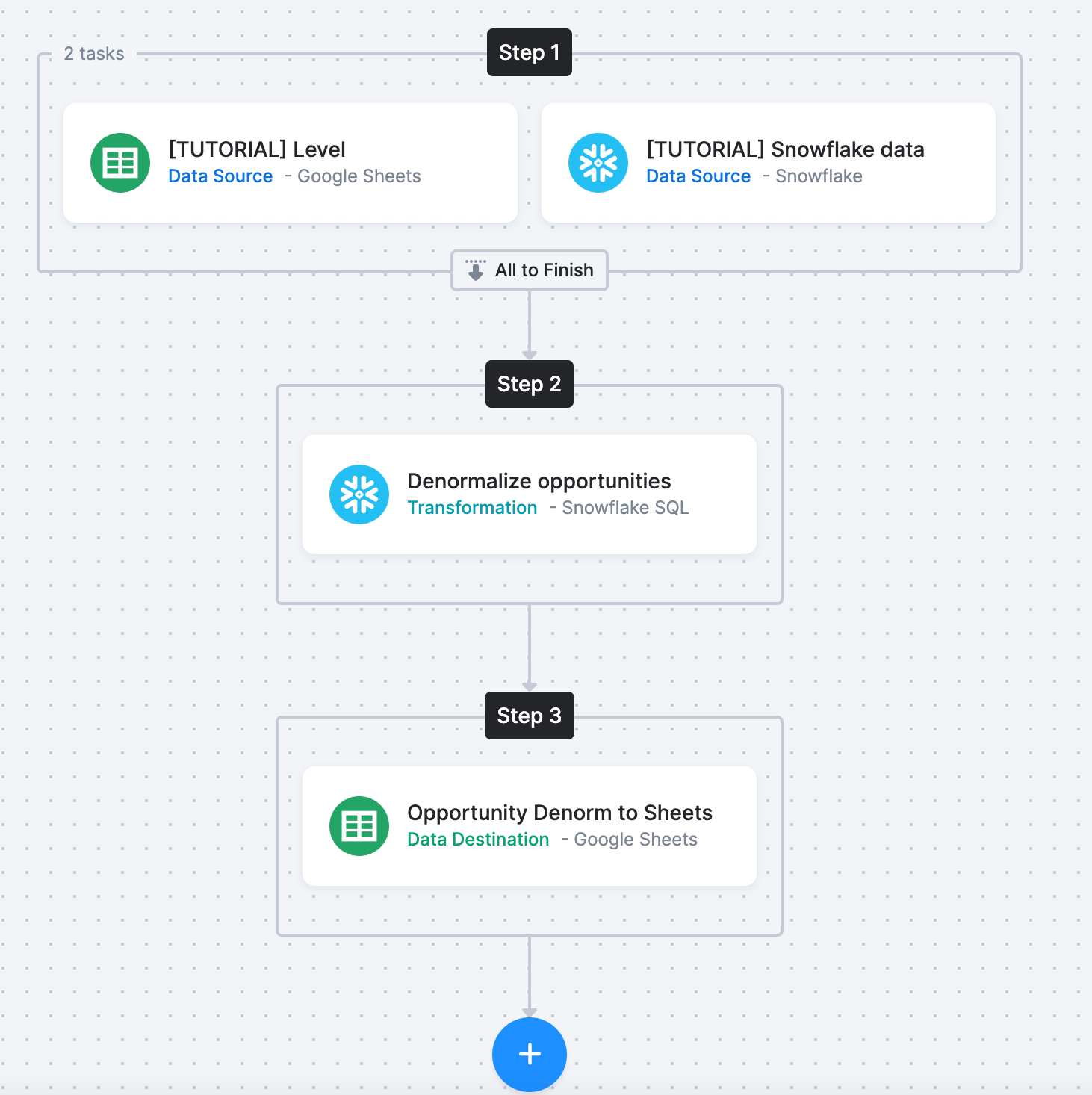
That is the whole model, and it makes the ordering obvious: things that can happen at the same time go in one phase; things that depend on each other go in separate phases. Your pipeline is three phases — extract, transform, deliver — because the transformation needs all four tables before it can join them, and the sheet needs the joined table before it can deliver it.
Flows can also branch on what happened: retry a task, take a different path on failure, end early. That is conditions, and you need none of it yet.
Build the flow
Section titled “Build the flow”-
Go to Flows — labelled Conditional Flows where both kinds exist — and click Create Flow. Name it
[TUTORIAL] Opportunity pipeline, add a description, and you land in the Builder.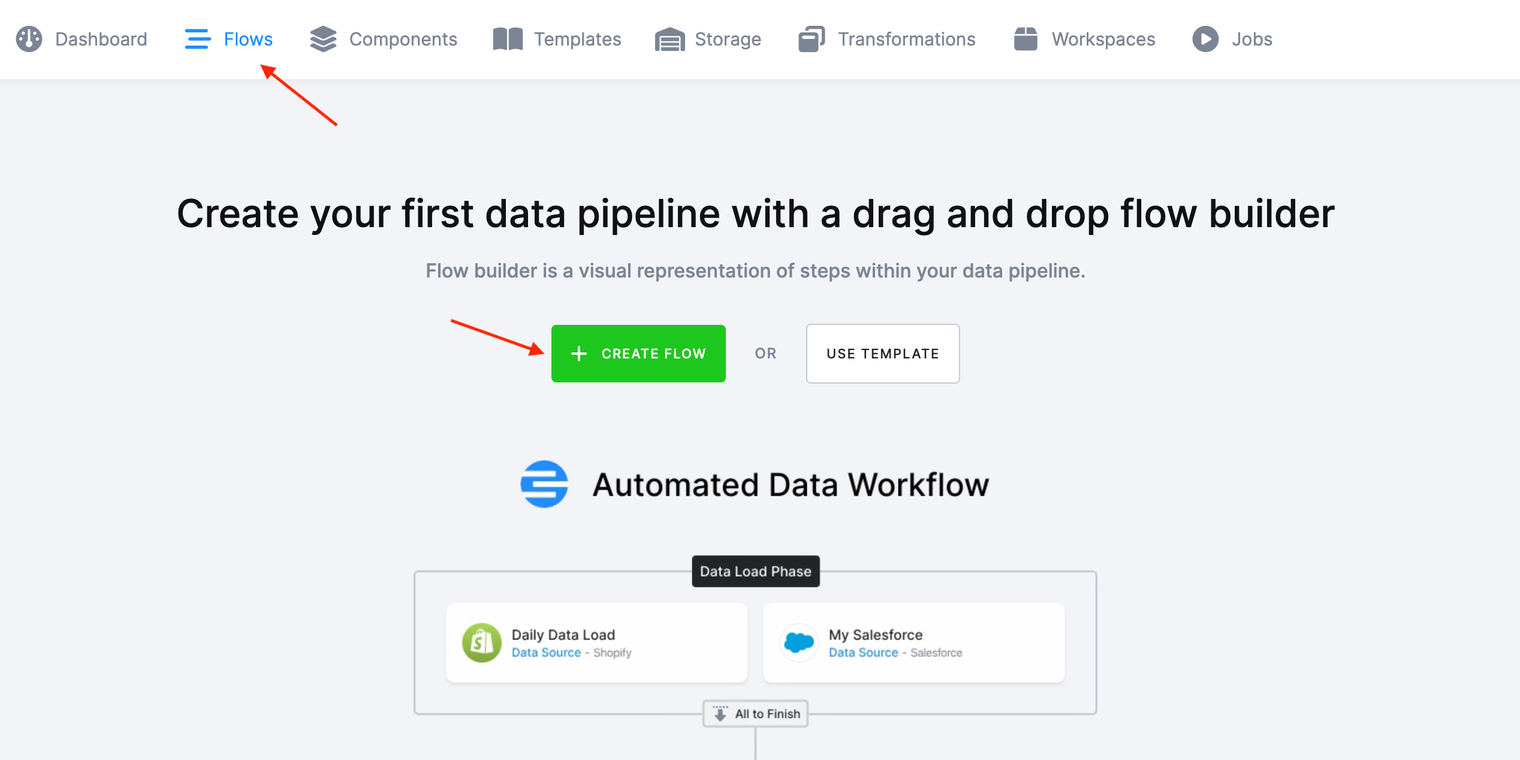
-
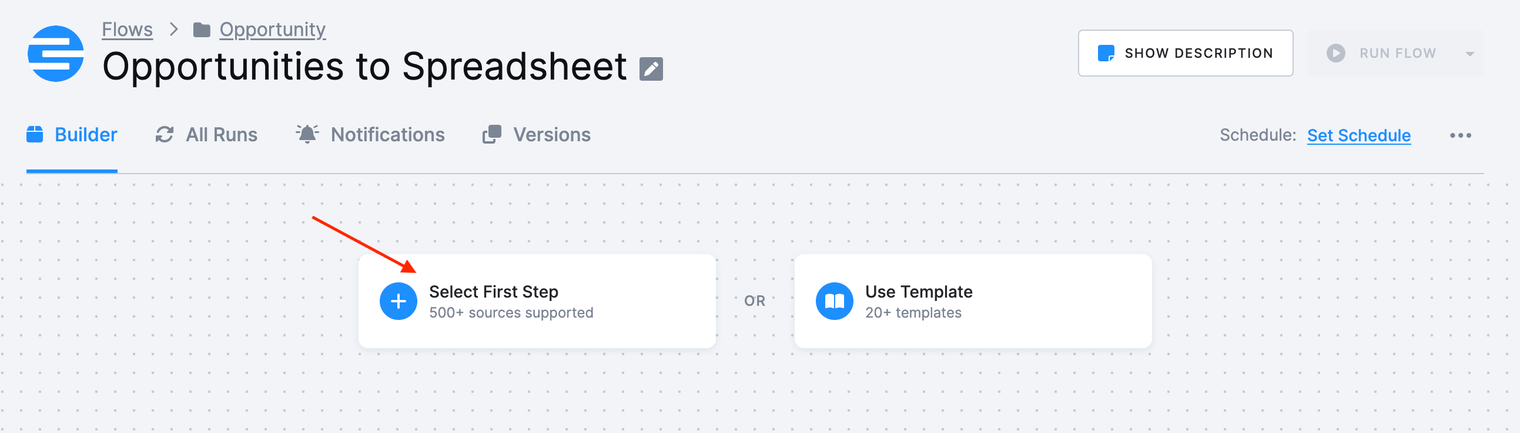
Use the plus icon (+) to add your first task and pick Component. Select the
[TUTORIAL] OpportunityCSV Import configuration.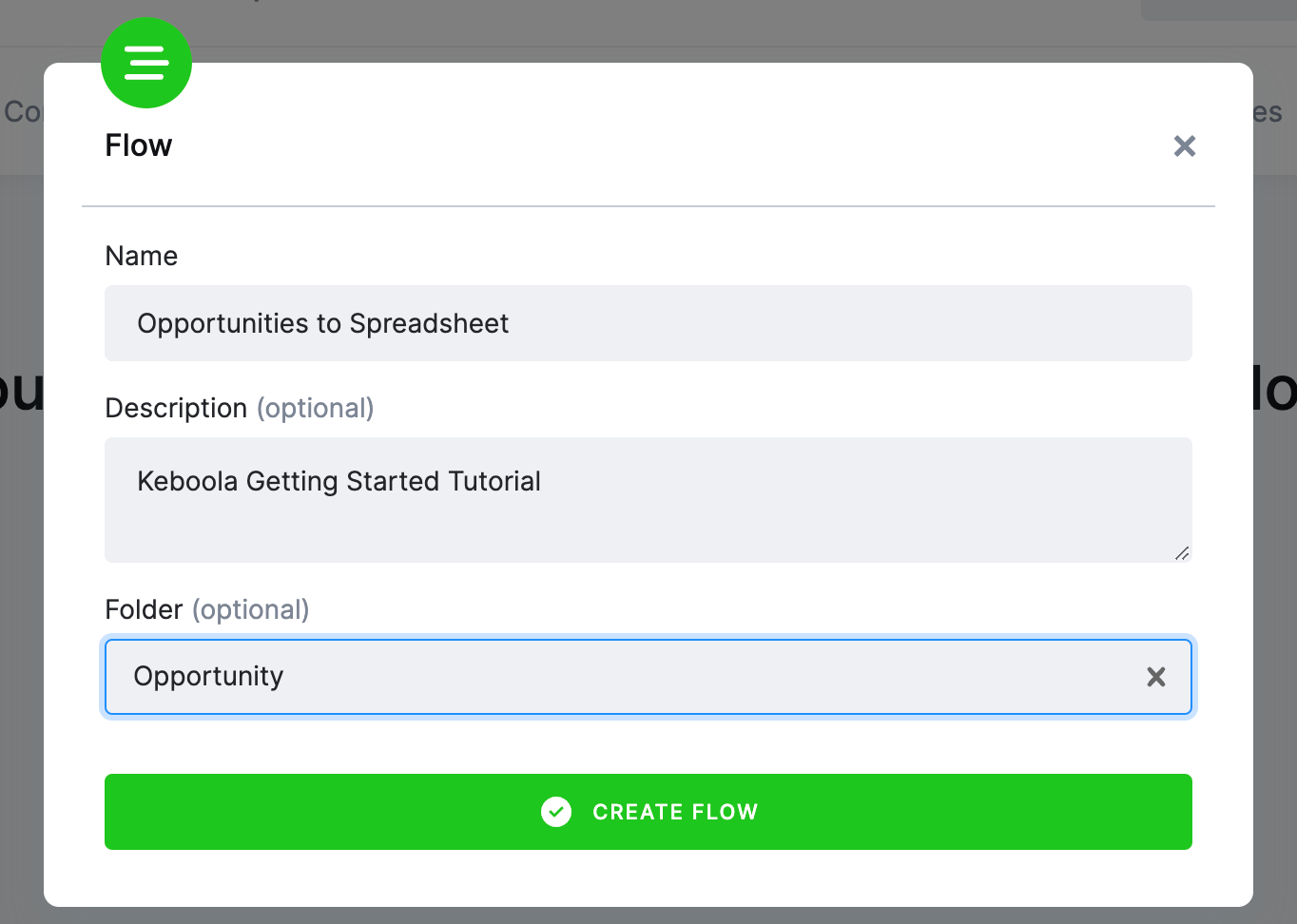
-
Add the other three CSV Import configurations to the same phase — they read four independent files, so there is no reason to wait for one before starting the next. The builder distinguishes adding a task into an existing phase from starting a new one; phases are the numbered groups (Step 1, Step 2, …) and the tasks sit inside them.
-
Add a new phase and put the
Denormalize opportunitiestransformation in it. Being in a later phase is what guarantees all four tables have landed before the SQL runs.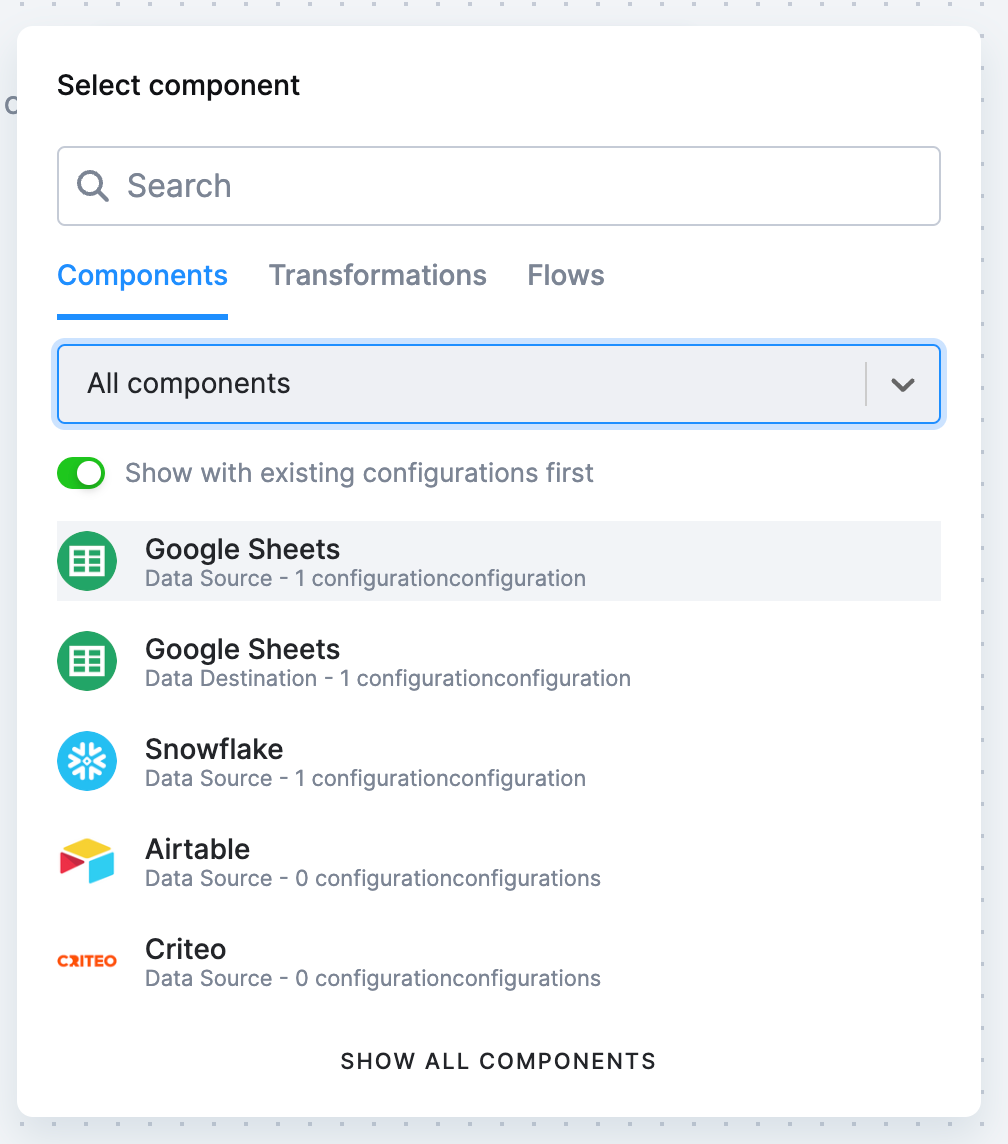
-
Add a third phase holding the Google Sheets destination configuration.
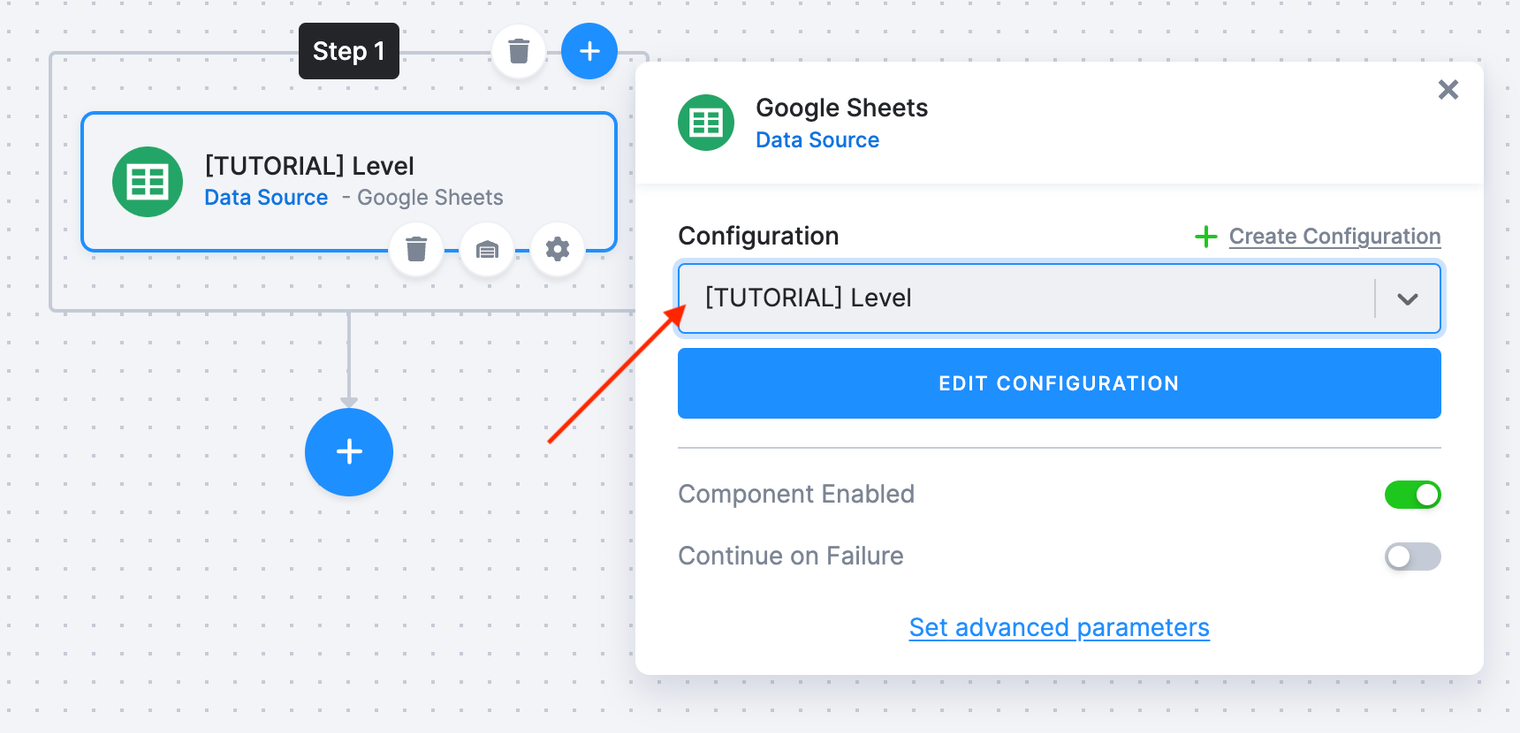
You now have three phases: four parallel loads, then the transformation, then the delivery.
Run it
Section titled “Run it”Click Run Flow to run it once by hand before scheduling it. Every task creates its own job, so Jobs tells you exactly which step failed if one does, and the flow’s run detail shows the phases completing in order.
Set a schedule
Section titled “Set a schedule”Click Set Schedule and choose when the flow runs — a predefined interval or your own. Daily at 6:15 UTC is a reasonable choice for this pipeline.
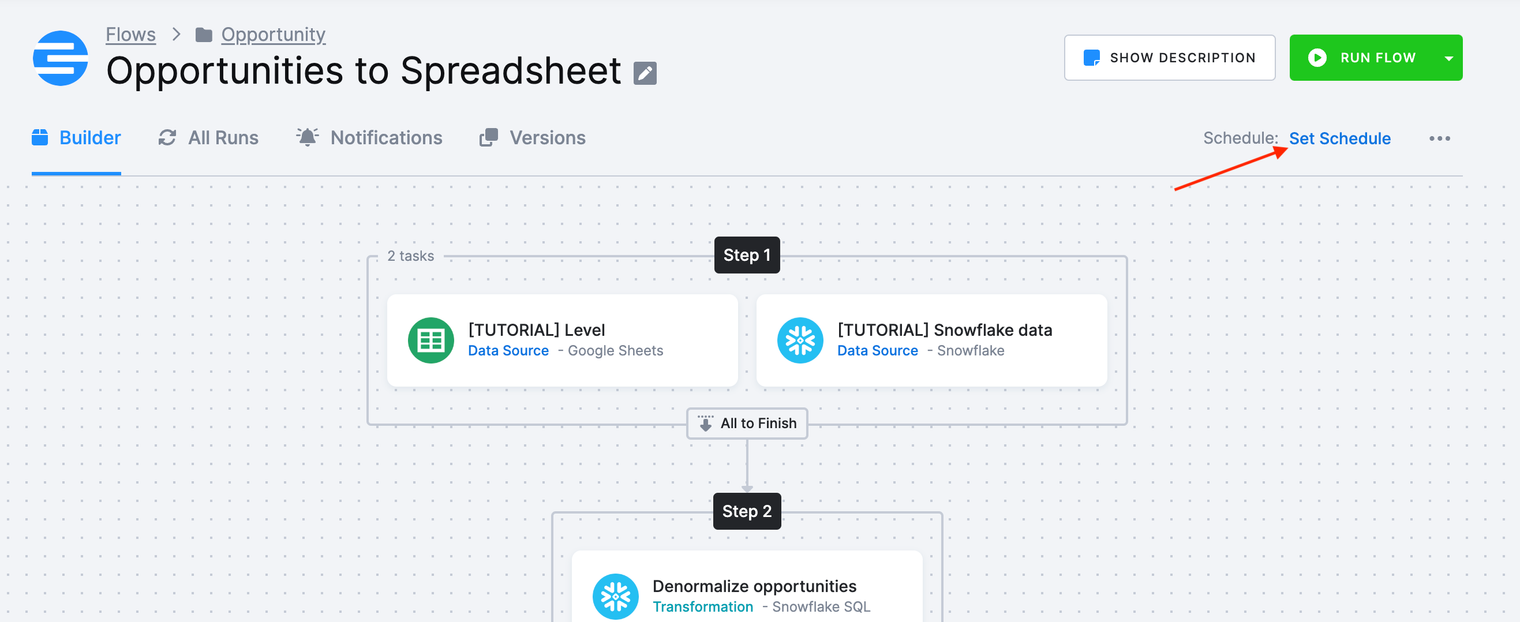
If you share a stack with other projects, scheduling slightly off the hour avoids the busiest moments. A flow can also be triggered when a table changes instead of on a clock — see Schedule and Automate.
Get told when it breaks
Section titled “Get told when it breaks”An automated pipeline that fails silently is worse than a manual one. Open the flow’s Notifications tab, click Edit Notifications, and enter the email addresses (or a webhook URL) that should hear about failures.
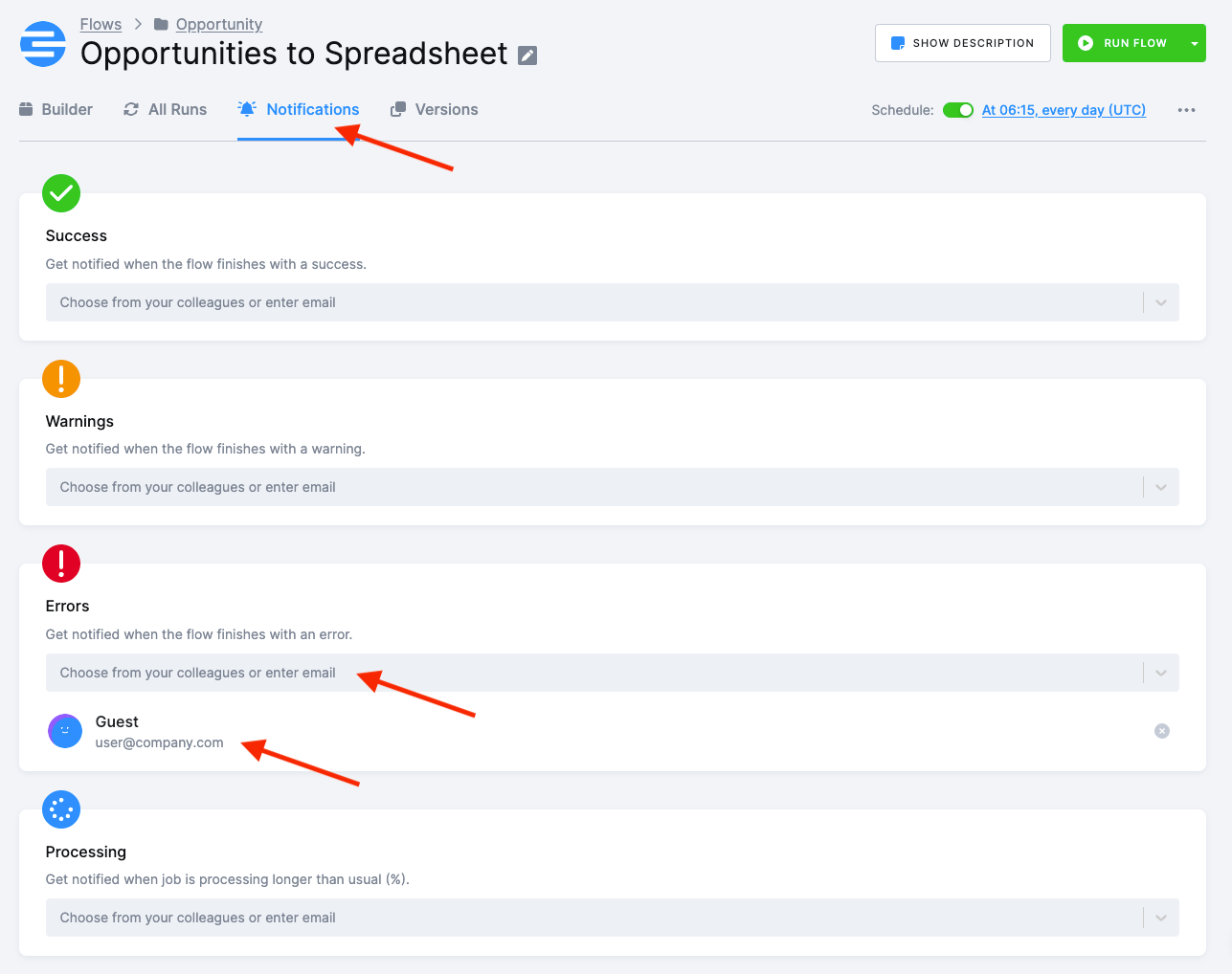
You can be told when the flow finishes with an error, when it finishes with a warning, and when it takes significantly longer than its own average. Error notifications on every scheduled production flow are the one setting nobody should skip — see Notifications.
There is a second, finer mechanism: a Notification task placed inside the flow, driven by a condition such as if any task in the flow ended with an error. That is what you reach for when a single flow needs different alerts for different failures; the Notifications tab is enough here.
Check it worked
Section titled “Check it worked”- The flow’s run history shows one successful run with all three phases green.
- Jobs lists a job per task — four loads, one transformation, one delivery — alongside the flow’s own orchestration job.
- The schedule is shown on the flow, with the next run time.
If it goes wrong
Section titled “If it goes wrong”- The transformation fails inside the flow but works on its own. Its phase is running before the loads finish — check that the connectors sit in an earlier phase, not the same one.
- Everything succeeds but the sheet is unchanged. The destination ran before the transformation wrote its output, or its phase is missing entirely. Read the run detail top to bottom.
- The scheduled run never happens. The schedule was saved but the flow is disabled, or the project is out of runtime credits — Free Plan projects get up to 60 minutes a month, and while flow jobs themselves consume none, the component jobs they start do.
- Jobs queue instead of running. Too many parallel tasks in one phase; Storage jobs are typically capped at 10 in parallel. Split the phase.
Next: Where to go next →